Battery swelling, burning smell, or unusual heat
Stop using the computer. Disconnect external power only when that can be done safely, then use the manufacturer or a qualified hardware specialist.

Computer Repair
A blank screen does not always mean the computer has no power. Note whether lights or fans come on, a manufacturer logo appears, or Windows begins loading. Those clues help distinguish power, display, startup, and storage trouble. Do not open the computer or begin a reset before considering the condition of the drive and any files without a backup.
Guide updated
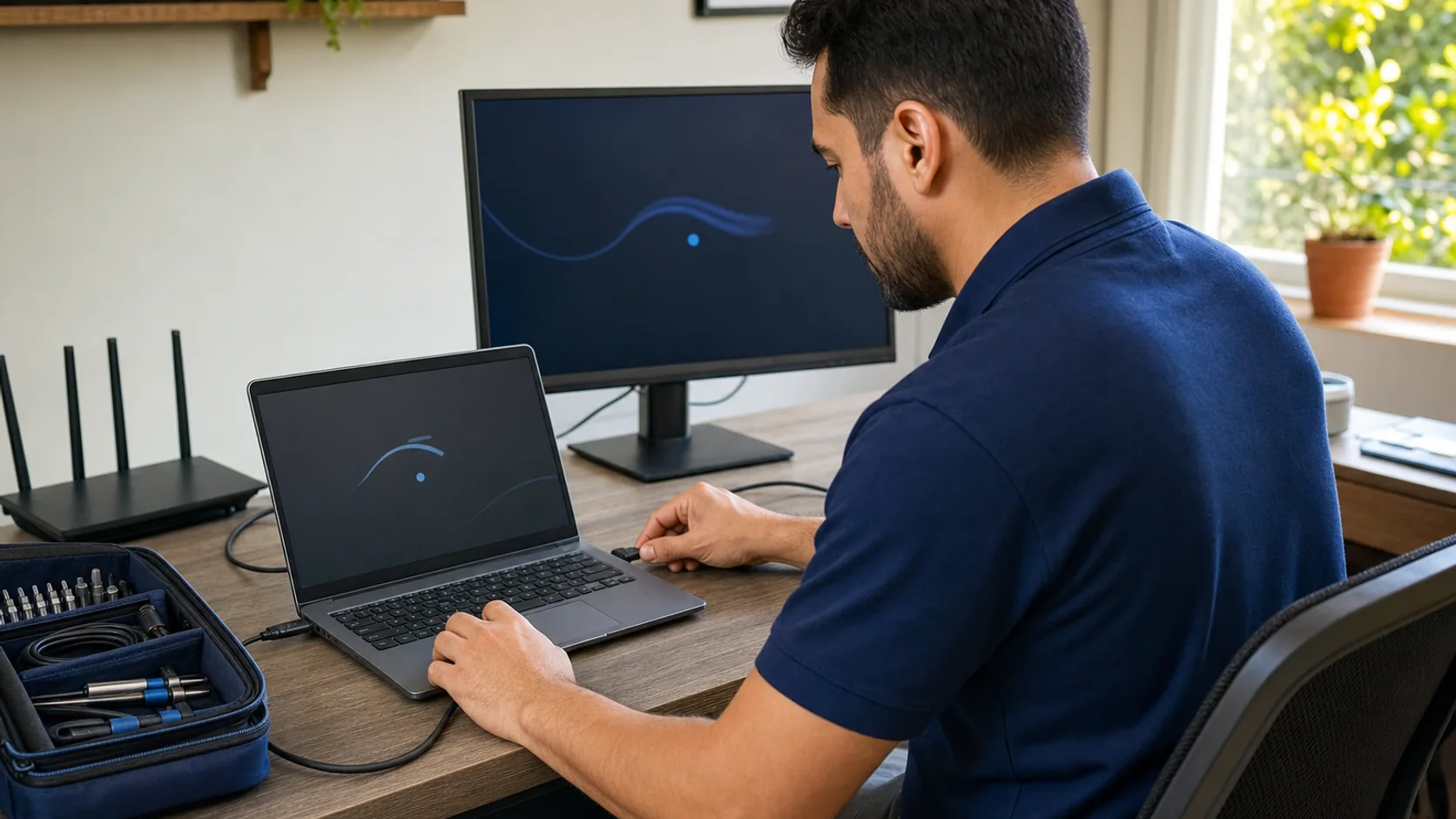
Check the symptoms before changing the setup.
Power, fan activity, screen output, and where startup stops help separate power, display, Windows, and drive problems.
Start with the last reliable clue
Note the last thing the computer does: no response, a blank display, a startup screen, or a usable desktop. Do not reset it to find out which problem you have.
What to observe: After checking a known-working outlet and the computer’s normal power lead, note any charger light, case light, fan, or startup sound.
Type of help: No response usually needs an on-site power-path check, or the manufacturer when warranty coverage applies.
What to observe: Note whether the monitor has power, which input is selected, whether a dock or external display changes the result, and any beep or blink pattern.
Type of help: Use an on-site display and hardware diagnostic; a remote session cannot start before the computer shows a usable desktop.
What to observe: Record the exact logo, loop, recovery, or error screen only if it contains no private information or recovery key, then note what changed recently.
Type of help: Use a startup or Windows diagnostic; choose the device or organization vendor when warranty or management controls apply.
What to observe: Note when the freeze begins and whether the computer stays stable long enough to protect current work and confirm an existing backup.
Type of help: A stable desktop may allow remote triage; repeated crashes or drive warnings belong on the on-site or data-recovery path.
Stop now
Stop using the computer. Disconnect external power only when that can be done safely, then use the manufacturer or a qualified hardware specialist.
Do not power it on again or use heat to dry it. Keep ordinary troubleshooting paused and use the appropriate hardware or manufacturer route.
Stop repeated power-on attempts. If the files matter, ask a data-recovery specialist before normal repair work.
Do not run repair tools, initialize the drive, reset the computer, or reinstall Windows before getting recovery advice.
Choose the right kind of help
The computer reaches a usable desktop, connects to the internet, and stays stable long enough for an approved session.
There is no power, a black screen, an early startup loop, a dock or monitor question, or uncertain physical hardware.
Warranty, battery swelling, liquid or impact damage, managed business equipment, or specialized hardware work is involved.
A drive clicks, grinds, disappears, or holds irreplaceable unbacked-up data that further testing could put at risk.
Details to include in a repair request
Useful details are the device model, visible lights or sounds, the exact non-sensitive screen, recent changes, and whether an existing backup matters.
Do not send passwords, MFA codes, BitLocker or other recovery keys, private files, or sensitive screenshots.
Nothing here authorizes a reset, reinstall, format, firmware change, drive repair, or opening the device. Diagnosis, recovery planning, and explicit approval come first.
Facts checked July 14, 2026
Recovery tools can change files, apps, settings, or access. Read the current Microsoft guidance and check your backup before choosing one.
Detailed checklist
Open this when you need the BitLocker, no-boot-device, update-loop, backup, and specialist details.
How Tech Genie helps
We can investigate the symptoms, explain the findings, and carry out the work you approve. Unresolved issues and provider referrals are included in the service notes.
FAQ
No. A power, display, update, or Windows startup problem does not automatically mean the storage has failed. Recovery still cannot be guaranteed, so stop repeated testing when the drive makes unusual sounds, disappears, or holds irreplaceable files without a backup.
Usually not if the computer cannot reach a stable desktop and internet connection. Remote triage can work when Windows loads and stays usable; no power, black-screen, and early-boot problems usually need an on-site, vendor, or specialist path.
Not as a diagnostic shortcut. A reset can remove apps, settings, or data and can make recovery planning harder. First record the exact screen, confirm backup status, and understand whether the problem is Windows, storage, encryption, or hardware.
No. BitLocker protects the owner's data, and Tech Genie does not bypass encryption or guarantee recovery. The owner or authorized organization must retrieve an available recovery key through its approved Microsoft, work, school, or documented account path.
Keep troubleshooting
Find out whether startup apps, low storage, memory pressure, or a failing drive explains the slowdown before spending on upgrades.
Read guide 3 min
Check Windows 11 eligibility, device health, and essential apps before choosing an upgrade, ESU, or a replacement PC.
Read guide 9 min
A dropped call, flickering monitor, and missing printer may have different causes. Test each part of the desk setup.
Read guide 3 min
Tech Genie is not a licensed contractor. Construction-related work is limited to casual, minor, or inconsequential projects totaling less than $1,000 for labor, materials, and all other items, requiring no building permit, and performed without employees or paid helpers.