
All guides

Computer Repair

New computer data transfer checklist: what moves, what doesn’t, and when to wipe the old PC

A successful transfer is not measured by one progress bar. The new computer should handle the files, programs, browser, email, printer, cloud folders, and everyday tasks you actually use—while the old computer remains an untouched fallback until those checks pass.

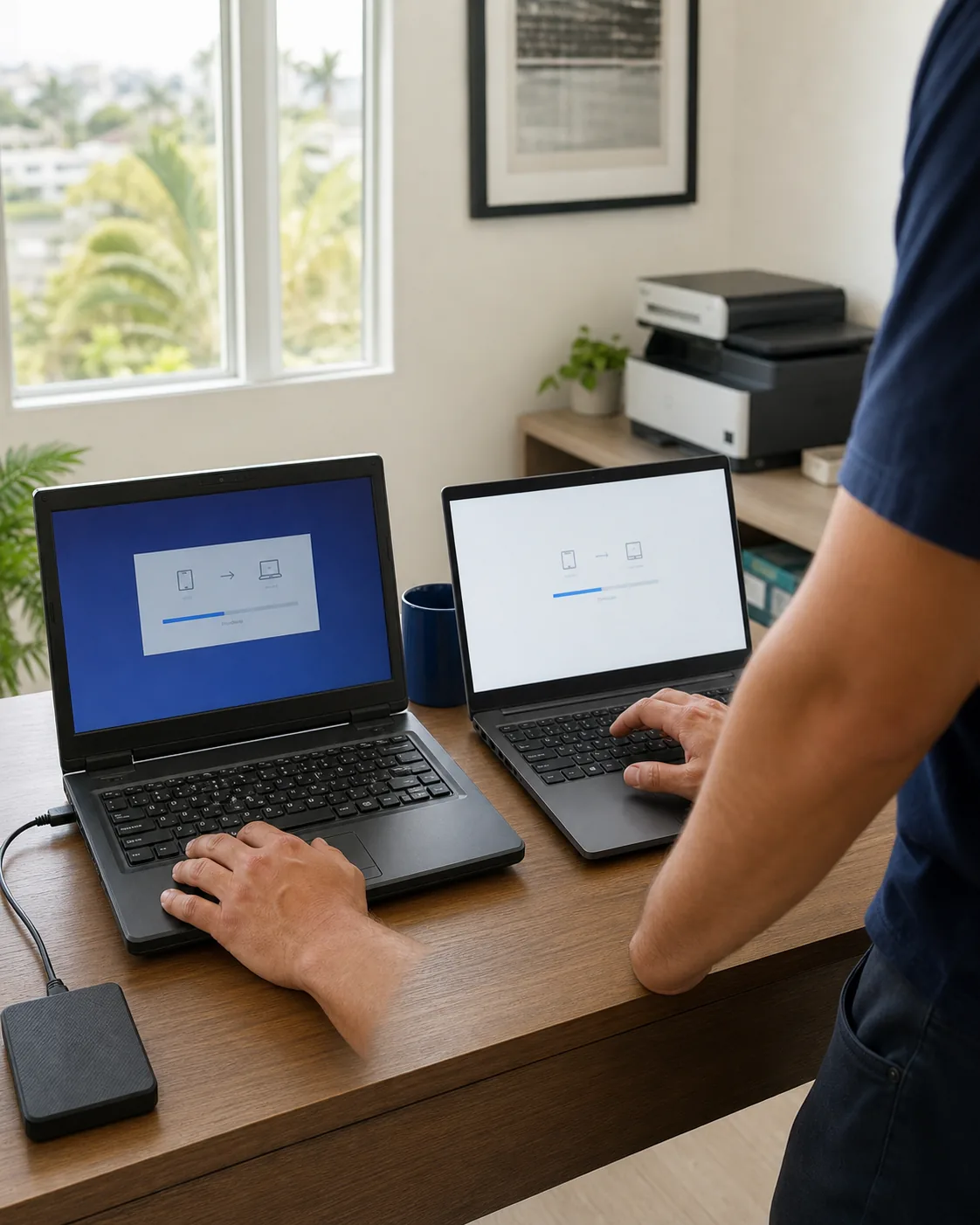
A technician checking an old laptop and a new laptop during a careful data transfer

Guide updated

Start with simple checks. Get expert help when the fix needs more.

Keep the old computer unchanged until files, apps, email, printers, cloud sync, and backups have been checked on the new one.

Transfer plan before transfer tools

A new computer is ready only when the owner's real work is verified.

Copying files is one part of a migration. Installed programs, licenses, cloud placeholders, local email, printers, browser settings, and backups each need a separate plan and a visible pass-or-exception result.

  1. 1Inventory what matters
  2. 2Verify a safety backup
  3. 3Transfer and reinstall
  4. 4Test the daily workflow
  5. 5Hold before any wipe

Before-transfer inventory

List the computer's jobs, not just its folders.

The owner identifies what belongs in scope. Record names, locations, versions, and expected outcomes without copying passwords or reading private file contents.

  • The two computers

    Model, operating system, available storage, source-drive condition, power adapters, and whether the old computer starts reliably.

  • Owner-selected files

    The exact folders that matter: Desktop, Documents, Pictures, Videos, Downloads, project folders, local archives, and any data stored outside the usual profile.

  • Programs and licenses

    Apps used today, subscription accounts, product keys or license portals, vendor installers, plugins, templates, fonts, and line-of-business software.

  • Accounts and sync

    Which Microsoft, Apple, Google, browser, email, and cloud-storage accounts belong on the new computer—and which old or shared accounts do not.

  • Devices and workflows

    Printers, scanners, label makers, cameras, docks, displays, backup drives, mapped shares, VPNs, meeting tools, and the jobs they must still perform.

  • Business constraints

    Managed accounts, encryption, compliance, shared data, vendor support, acceptable downtime, approval authority, and a rollback contact.

Detailed decision table

Files and installed programs do not move the same way.

Open the table when you need the normal path, proof check, and limitation for files, apps, licenses, cloud folders, browsers, email, and printers.

Decision table for data, applications, accounts, email, browsers, printers, and licenses during a new-computer transfer
ItemNormal pathProof on the new computerImportant limit
Documents, photos, and project foldersCopy only the folders the owner identifies, from a readable source or verified backup.Open representative files on the new computer and compare important folder counts or totals where practical.A completed copy does not prove that every source file was healthy or included.
Installed programsReinstall from the publisher, app store, organization portal, or original authorized media.Launch the app, sign in or activate under the owner’s account, open a safe sample, and test required plugins or devices.Copying Program Files or an application folder usually does not recreate a working installation, services, drivers, or licensing.
Licenses and subscriptionsConfirm the owner can reach the vendor account, installer, entitlement, or transferable product key before retiring the old computer.The new installation shows the expected license and the old-device deactivation requirement is understood.Do not remove an old activation until the replacement path is confirmed; some licenses are device-bound or organization-controlled.
Cloud-synced foldersIdentify the account and whether each item is local, online-only, shared, or excluded before relying on sync.Open selected files from the new computer and check the provider’s web view or another independent backup when appropriate.A green check or cloud icon is sync status, not proof of a separate backup. Deletions and ransomware changes can also sync.
Browser bookmarks and profilesUse the owner’s approved browser sync or a deliberate bookmark export/import; install only extensions the owner recognizes.Check bookmarks, the preferred start page, downloads location, PDF behavior, and required sites without exposing saved secrets.Do not export, record, or send saved passwords, session cookies, autofill payment data, or private history as part of the job report.
Email and local archivesAdd the authorized account through the provider’s supported setup. Inventory local PST, archive, signature, rule, or address-book data separately.The owner sends and receives a test, sees expected folders, and confirms any local archive they asked to preserve can be opened.Webmail appearing normally does not prove that old local-only mail, contacts, signatures, or rules were transferred.
Printers, scanners, and specialty devicesInstall a current supported driver or vendor app, then recreate only the approved connection and workflow.Print a test page and test scanning to the actual destination or app the owner uses.A printer showing as installed does not prove scanning, duplexing, labels, presets, or network discovery works.

Backup verification

A backup should be opened, not assumed.

  • The backup destination is identified and is not merely another folder on the same source drive.
  • The newest expected backup date and status are visible; warnings or skipped items have been reviewed.
  • Representative documents, photos, and one important project file open from the backup destination.
  • Local-only email archives, accounting files, databases, custom templates, and unusual folders have their own confirmed path.
  • The owner understands what is excluded, online-only, unavailable, encrypted, damaged, or still waiting to sync.
  • The old computer remains unchanged until the new computer passes the agreed verification checklist.

Verification reduces migration risk; it cannot guarantee that damaged, missing, encrypted, or previously unsynchronized data can be recovered.

Cloud-sync traps

Visible is not always local or backed up.

  • Online-only placeholders

    A filename can appear in File Explorer or Finder while the content still lives only in the cloud. Confirm availability before the old account or device is removed.

  • Desktop and Documents redirection

    OneDrive, iCloud Drive, and similar tools may redirect familiar folders. Record which provider and account owns each location before copying duplicates.

  • Multiple personal and work accounts

    Similar folder names can belong to different tenants or people. The owner identifies the correct account; a technician should not guess or merge them.

  • Sync is not versioned recovery

    A deletion, overwrite, encryption event, or bad edit may propagate. Keep an independent verified backup when the data matters.

Controlled sequence

Six gates from old computer to signed-off handoff.

Each gate has a visible result. A failure becomes an exception or escalation—not a reason to quietly skip verification.

  1. Gate 1

    Freeze the scope

    Write down the selected folders, apps, accounts, devices, exceptions, and success checks. New requests are added deliberately instead of silently expanding the job.

  2. Gate 2

    Prove the safety copy

    Verify the existing backup or create the owner-approved backup before migration. If the source drive is unstable, stop ordinary copying and choose a recovery path first.

  3. Gate 3

    Prepare the destination

    Confirm storage, supported updates, the correct owner profile, encryption choice, recovery ownership, and a safe network before bringing data across.

  4. Gate 4

    Move selected data

    Copy the agreed data, record failures and exclusions, and avoid opening private content except when the owner selects a non-sensitive sample for verification.

  5. Gate 5

    Rebuild the workflow

    Install authorized apps from trusted sources, let the owner complete account sign-ins, and reconnect printers, email, browser, backup, and required business tools.

  6. Gate 6

    Verify and hand off

    Run the checklist with the owner, document what passed and what remains, agree on an old-computer hold period, and provide the next action for every exception.

First-day verification

Test the task, not just the icon.

A shortcut on the desktop, an account name, or an installed printer is not a completed check. Use representative, owner-approved tests and record pass, exception, or vendor follow-up.

  • Files

    Open chosen documents, photos, PDFs, and project files from the new location—not just the folder list.

  • Browser

    Check bookmarks, homepage, downloads, PDF links, required sites, and only the extensions the owner approved.

  • Email

    Send and receive a test; inspect expected folders, contacts, signatures, calendars, and requested local archives.

  • Printer and scanner

    Print and scan through the real workflow, including duplex, labels, presets, or scan destination when those matter.

  • Apps and licenses

    Open the daily-use programs, confirm activation, and test a representative file, plugin, template, or connected device.

  • Backup and recovery

    Confirm the new backup is configured as approved, its first run is understood, and recovery details remain with the owner.

Hold before wipe, trade-in, or disposal

Keep the old computer intact until every required box has an answer.

During the agreed hold period, keep the old computer safely stored and normally powered off. Do not let a wipe, reset, trade-in deadline, account removal, or cloud cleanup erase the only remaining copy of something that has not been verified.

  • Every owner-selected folder has been checked on the new computer, with exceptions documented.
  • Daily-use apps launch and their licenses, plugins, templates, and data locations are confirmed.
  • Email, browser, printer, scanner, network shares, VPN, meeting tools, and accessibility settings have passed the agreed tests.
  • Cloud accounts have finished the expected sync and the owner has checked for online-only, shared, and local-only items.
  • The replacement computer has a completed, verified backup—not only a configured backup job waiting for its first run.
  • The owner has used the new computer in real work and reported any missing item during the agreed hold period.
  • Business, legal, tax, warranty, return, security-incident, or data-retention requirements no longer require the old device or drive.
  • The owner has approved the exact wipe, recycle, trade-in, return, or storage action after reviewing the final exception list.

Owner-controlled access

No password collection. No surprise destructive action.

The owner types passwords and MFA codes directly into the provider's sign-in screen. Tech Genie does not request, photograph, save, place in reports, or transmit them.

Private-file contents, browser secrets, recovery keys, payment details, identity documents, and unrelated personal data are outside normal collection scope.

Nothing here authorizes an automatic wipe, reset, format, overwrite, account deletion, license deactivation, encryption change, or disposal. The owner receives an explanation and gives explicit manual consent before any destructive step.

Pause and escalate

These conditions change the route.

Open the escalation table for failing drives, missing backups, managed devices, encryption, specialty software, or incident-response concerns.

Conditions that require pausing or escalating a new-computer data transfer
SignalSafer route
The old drive clicks, disappears, reports serious errors, or cannot read important filesStop repeated copying and normal repair attempts. Discuss a qualified data-recovery route before further stress on the drive.
Irreplaceable data exists with no verified backupPause setup decisions that could overwrite or alter the source. Set recovery priority and acceptable risk with the owner first.
The computer is work-, school-, or organization-managedUse the organization’s authorized IT or vendor process. Do not bypass device management, encryption, security controls, or account policy.
Encryption or account ownership cannot be establishedUse the provider’s legitimate owner-recovery path. Do not collect recovery keys or attempt to defeat access controls.
A licensed app, database, or specialty device has no supported migration pathKeep the source intact and involve the software or hardware vendor before deactivation, conversion, upgrade, or disposal.
The source may be compromised, infected, or part of a legal or business incidentSeparate incident response from routine migration. Preserve the approved evidence and get the appropriate business, legal, insurer, or specialist direction first.

Scoped setup and written handoff

Get the new computer working without gambling the old one.

Tech Genie can inventory the workflow, verify the backup plan, transfer selected data, reinstall approved apps, test everyday tasks, and document any exceptions. Recovery outcomes depend on source condition and available copies, so missing or damaged data is assessed before ordinary migration continues.

How Tech Genie helps

Solve the problem and make it easier next time.

Tech Genie identifies the cause, handles the agreed work, and explains what changed and what to do next.

Build a structured transfer inventory around the customer's normal workflow, not every file and setting on the old computer.
Set up and test approved essentials such as updates, browser, email basics, printers, scanners, cloud-sync expectations, and representative files while account sign-ins stay customer-controlled.
Leave an old-computer hold and disposal plan. Wiping, formatting, account removal, recycling, or destructive cleanup happens only after backup confidence and explicit approval.

FAQ

Quick answers before booking.

Does a computer transfer move all of my programs and licenses?

Usually not. Personal files often transfer more easily than installed programs, device drivers, paid licenses, email profiles, and app settings. Inventory the must-have software and confirm its installer, subscription, or vendor sign-in before retiring the old computer.

Is OneDrive, Google Drive, or iCloud the same as a verified backup?

Not automatically. Sync can copy deletions, conflicts, or incomplete selections. Confirm which folders are included, whether files are fully available, and whether a separate recovery copy is needed for anything irreplaceable.

When is it safe to wipe or recycle the old computer?

Only after the new computer’s everyday workflow and representative files are tested, important data has a verified recovery path, and the owner explicitly approves the wipe. Keeping the old machine unchanged for a short hold period is safer than erasing it during setup day.

Can Tech Genie guarantee every file can be recovered or transferred?

No. A failing, encrypted, damaged, or unreadable drive can limit what is possible and may require a data-recovery specialist. Tech Genie can assess the safest approach, but does not promise recovery or continue risky transfer attempts without approval.

Keep troubleshooting