
All guides

Phone & Tablet Setup

New phone transfer checklist: what moves and when to erase the old phone

A transfer is finished only when the owner can use the new phone—not when a progress bar disappears. Choose the official route for the old and new devices, keep both phones powered and available, then verify calls, messages, contacts, photos, accounts, apps, and recovery before erasing or trading in anything.

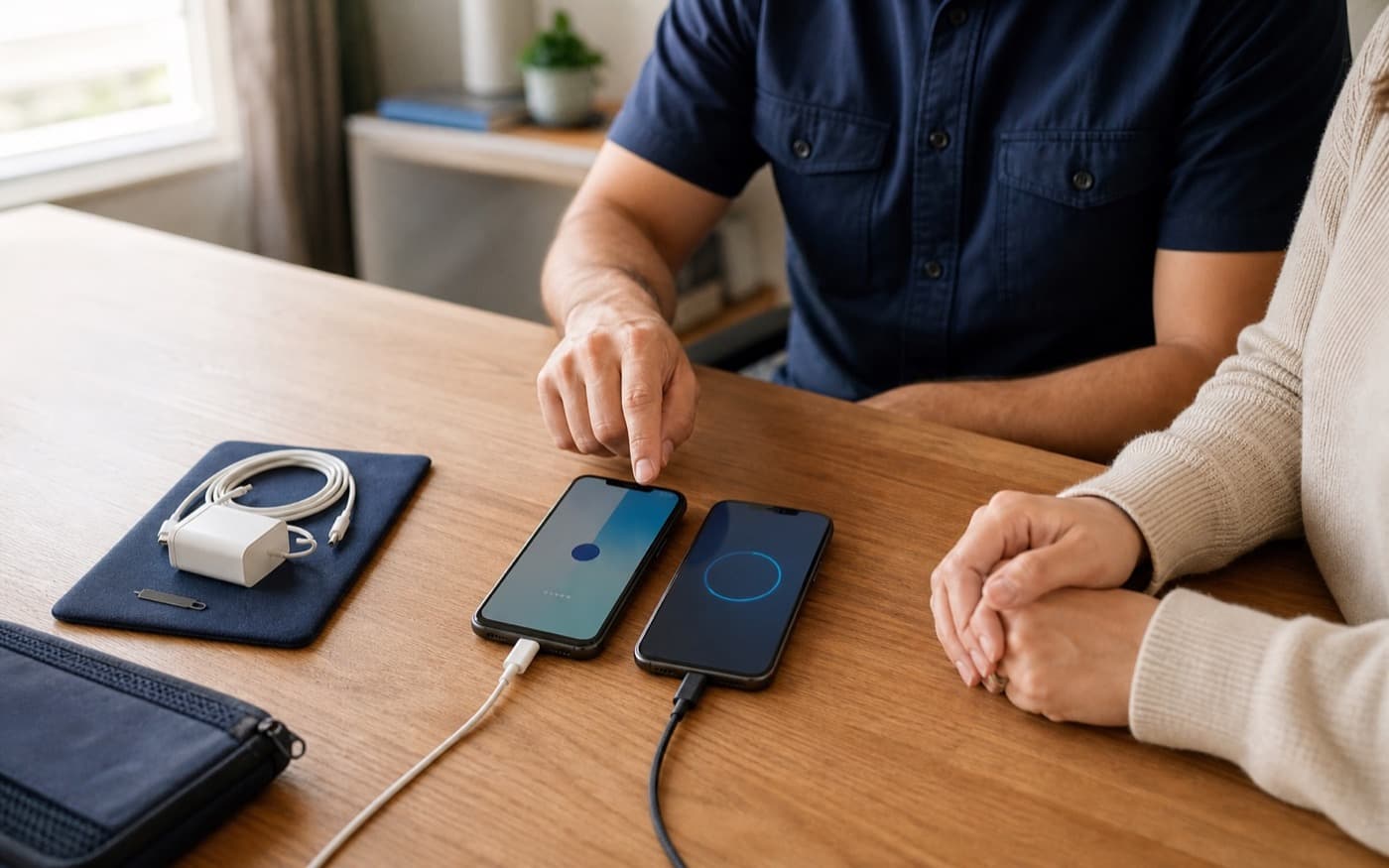
A technician and phone owner verifying a transfer between two smartphones

Guide updated

Start with simple checks. Get expert help when the fix needs more.

Keep the old phone intact until the owner has checked the data, accounts, messages, calls, and everyday apps that matter.

Choose the transfer method first

The old phone is the rollback plan until the new one passes real-life checks.

The safest path depends on both platforms and the device maker’s current setup flow. Transfer tools copy selected data; they do not prove every account, app, message, photo, number, or recovery method is ready.

iPhone or iPad → iPhone or iPad

Use Apple’s current setup assistant and transfer choice for the exact devices. Keep both devices powered, nearby when instructed, and available until the owner verifies the new device.

Watch: An iCloud restore can continue downloading after initial setup. Visible icons and thumbnails do not prove every item is local, complete, or usable.

Android → Android

Use the new phone’s supported setup flow and choose what to copy. Device makers can add their own supported transfer option, so follow the exact on-screen path and current documentation.

Watch: Some app data, downloads, hidden folders, non-Google accounts, and device-specific settings may need a separate check or fresh setup.

Android → iPhone or iPad

Use Apple’s current Android-to-iPhone setup guidance. Inventory the important data first and confirm that it fits on the new device before beginning the approved transfer path.

Watch: If the new Apple device is already in use, do not erase it merely to restart migration. Protect its current state and understand the official recovery or setup requirement first.

iPhone or iPad → Android

Use the new Android device’s current copy-data flow. Treat phone-number activation and the messaging transition as separate acceptance checks, not proof that the rest of the transfer succeeded.

Watch: Cross-platform moves can leave app histories, cloud libraries, subscriptions, and messaging behavior on different provider-specific paths.

Before the first copy

Prepare the owner, both devices, and the acceptance list.

  1. 1Name the old and new device models, platforms, storage sizes, carrier, phone number, and whether either device is work-, school-, or organization-managed.
  2. 2Confirm the owner can unlock the old phone and can personally access the Apple or Google account and carrier path needed for legitimate setup.
  3. 3Check that the new device has enough storage for the selected content and that both devices have safe power, compatible cables if needed, and a trusted connection.
  4. 4Review the visible backup status, but do not call a sync icon or a recent date a verified recovery until representative owner-selected items can actually be reached.
  5. 5Write a short acceptance list: the phone number, calls, texts, contacts, calendar, selected photos, selected apps, accessibility choices, and any essential non-sensitive workflow.
  6. 6Agree that the old phone stays intact if anything important remains missing, uncertain, downloading, provider-controlled, or untested.

Acceptance checks

Test the owner’s real workflow—not the transfer progress screen.

Calls, number, and voicemail

The owner places and receives an ordinary call, confirms the expected number, and checks the carrier’s normal voicemail path.

Messages

Send and receive a harmless test message with the owner. Check the people and group conversations that matter without copying private content into the report.

Contacts and calendar

The owner checks representative contacts and upcoming events and identifies which Apple, Google, Microsoft, or other account owns them.

Photos and files

Open representative recent and older owner-selected items. A thumbnail, filename, or cloud icon alone is not proof that the full item is available.

Everyday apps

Launch selected non-sensitive apps and verify their basic workflow. App icons can reinstall while local data, licenses, histories, or settings do not.

Wi-Fi, accessibility, and backup

Test the intended Wi-Fi, requested display or hearing settings, and visible backup state while the owner controls any account or subscription decision.

Stop when extra help is needed

What if the transfer fails or asks for a risky step?

The old device is damaged, overheating, swollen, wet, unstable, repeatedly restarting, or contains irreplaceable data without a usable backup.

Stop routine transfer attempts. Preserve power state and data options, then choose the appropriate manufacturer, repair, battery-safety, or data-recovery path.

The setup asks to erase, reset, remove an account, disable a security control, or surrender the old device before acceptance checks pass.

Pause. Record the requirement, protect both devices’ current state, and get explicit owner approval only after the consequence and rollback path are understood.

The number, eSIM, calls, texts, or voicemail are not working as expected.

Keep both devices and contact the carrier through its verified channel. Do not repeatedly delete eSIMs, reset network settings, or erase either phone as a guessing step.

A work, school, family-management, or organization profile controls the device or account.

Use the authorized administrator or provider process. Do not remove management, profiles, certificates, VPNs, or security policy to force a consumer transfer.

Important data is missing, still downloading, duplicated, or only visible as a placeholder.

Leave the old phone unchanged, list the exception, and identify the owning app or cloud provider before deleting, merging, or running another migration.

Separate destructive step

Do not erase, reset, trade in, return, sell, or donate the old phone yet.

A completed transfer does not authorize disposal. Review this gate with the owner and record any exception before the old device changes.

  • The owner’s acceptance list has a pass or a documented exception for every item.
  • The new phone’s number, calls, messages, contacts, calendar, selected photos, and normal Wi-Fi path have been tested.
  • Required apps are usable or their vendor-specific next steps are written down; icons still downloading are not counted as complete.
  • The owner has personally checked sensitive account, authenticator, password-manager, banking, medical, and identity workflows without exposing their contents to the technician.
  • The new device’s approved backup state and account-recovery ownership are understood.
  • No return, trade-in, warranty, organization, evidence-preservation, or data-retention requirement still needs the old device unchanged.
  • The owner explicitly approves the exact erase, trade-in, sale, donation, return, or storage action as a separate step.

Need hands-on transfer help?

Bring both phones, both chargers, and the owner—not a list of passwords.

Tech Genie can guide the supported transfer, test the agreed everyday workflow, and leave an exception list while account access and sensitive apps stay customer-controlled.

Facts checked July 15, 2026. Device makers, carriers, and app providers can change supported transfer steps; follow their current instructions for the exact devices and accounts.

How Tech Genie helps

Solve the problem and make it easier next time.

Tech Genie identifies the cause, handles the agreed work, and explains what changed and what to do next.

Choose the current supported Apple, Google, or manufacturer transfer method for the exact old and new devices without promising that every app or data type will move.
Guide the transfer while the owner keeps control of passcodes, passwords, MFA, recovery, carrier approvals, subscriptions, purchases, and sensitive apps.
Run an owner-approved acceptance checklist for calls, messages, contacts, photos, email, selected apps, Wi-Fi, accessibility, and visible backup status.
Leave an exception list and old-phone hold plan. Erasure, trade-in preparation, account removal, or disposal is a separate explicit decision after verification.

FAQ

Quick answers before booking.

Will every app and every piece of data transfer to my new phone?

No supported tool guarantees that. What moves varies by the old and new platforms, device maker, app, account, transfer method, storage, and software version. Some apps reinstall without their local data, and some histories or settings need an app-specific process or fresh sign-in.

Should I erase or trade in my old phone as soon as the transfer says complete?

No. First verify the phone number, calls, messages, contacts, calendar, owner-selected photos and files, selected apps, account recovery, and backup status on the new device. Keep the old phone unchanged until the owner approves the exact handoff action.

Can Tech Genie enter my Apple, Google, carrier, or app passwords for me?

The owner should type passcodes, passwords, MFA codes, recovery codes, and carrier approvals directly. They should never be sent in a booking form, report, text, email, screenshot, or AI chat, and Tech Genie does not retain them.

What if my phone number, eSIM, calls, or texts do not work on the new phone?

Preserve both devices and record the exact symptom. Number and eSIM activation can be carrier-controlled, while cross-platform messaging can need provider-specific steps. Do not erase the old phone or repeatedly reset either device while that route is unresolved.

Can you bypass a forgotten passcode, Activation Lock, or account ownership check?

No. Tech Genie can point the verified owner to the provider's official recovery process but does not bypass device security, Activation Lock, organization management, carrier ownership checks, or account recovery requirements.

Keep troubleshooting