Every device is offline
Phones and computers on the same network also cannot reach a normal website.
Likely cause
Modem, router, or ISP
Next check: Check the provider outage page or app and the modem/router status before changing the TV.

Smart Home & Streaming
Open a second streaming app on the TV and check another device on the same network. If only one app fails, investigate that app or account. If the whole network is offline, check the router and provider first. Save a TV reset for a diagnosed problem with a plan to restore its accounts and settings.
Guide updated
Check the symptoms before changing the setup.
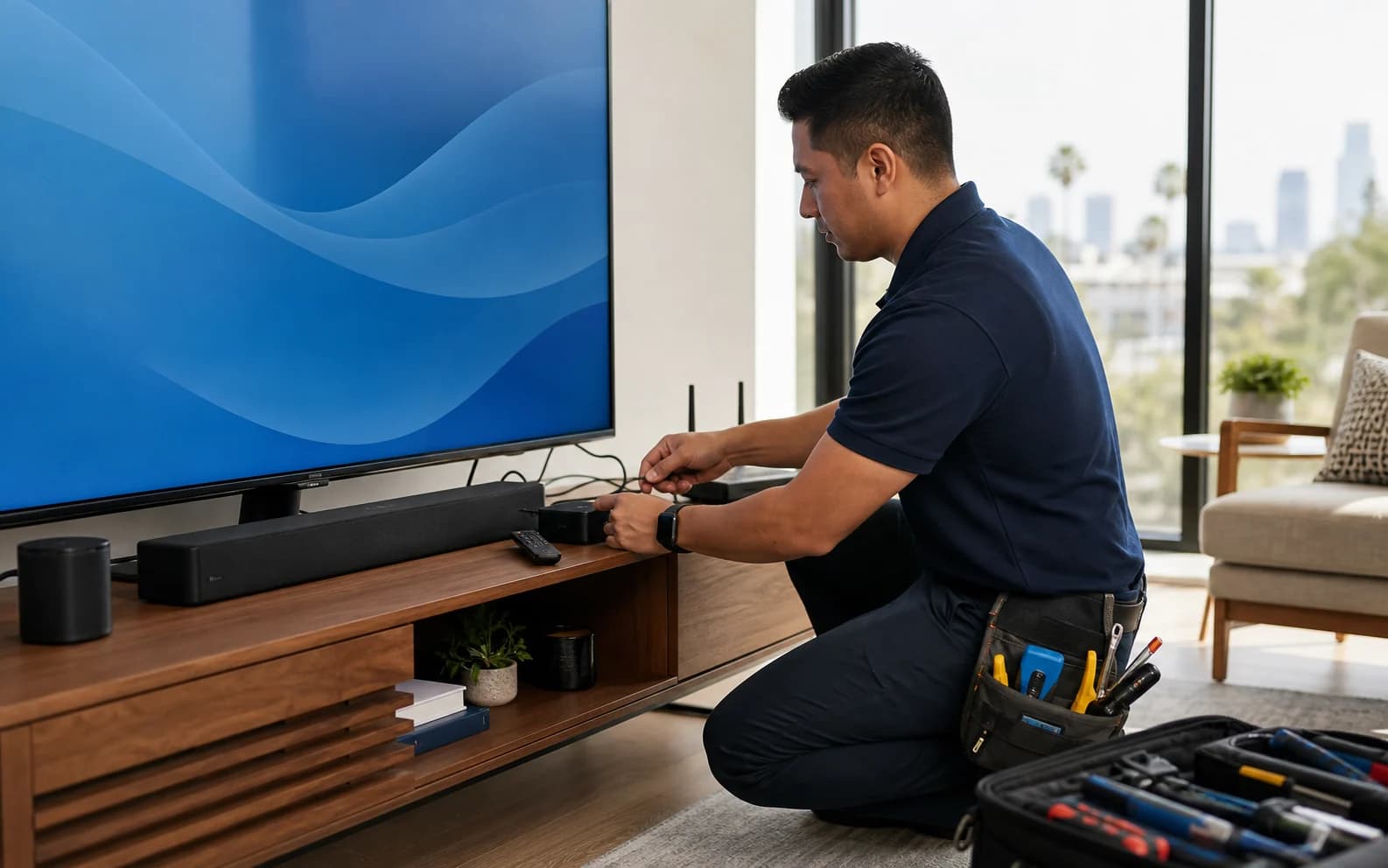
Smart TV, streaming player, soundbar, remote, and router setup in one room.
TV, network, or streaming service?
Streaming needs a working TV or player, local network, internet service, app, and account. Compare another device or app to narrow down which one failed.
Phones and computers on the same network also cannot reach a normal website.
Likely cause
Modem, router, or ISP
Next check: Check the provider outage page or app and the modem/router status before changing the TV.
Other devices work in the same room, but the TV cannot join Wi-Fi or reach the internet.
Likely cause
TV network settings or software
Next check: Confirm the exact network name, run the TV's network test, and restart the TV without resetting it.
Other apps stream normally, but one service errors, buffers, or asks for sign-in again.
Likely cause
Streaming service, app, or account
Next check: Check that service's status and help page, then confirm the owner-controlled profile and subscription.
Menus load and playback starts, then quality drops, pauses, or disconnects.
Likely cause
Weak or unstable connection
Next check: Use the device's connection test and compare Wi-Fi with Ethernet when the TV or player supports it.
The network name, password, router, mesh, or ISP gateway changed recently.
Likely cause
Old network details or changed coverage
Next check: Reconnect to the intended network and test nearby smart devices before renaming or resetting everything.
Streaming is online, but the input, soundbar, HDMI audio, volume, or remote path is wrong.
Likely cause
HDMI, eARC/ARC, audio, or pairing
Next check: Trace the selected input and cable path separately from the internet problem.
Checks before changing the setup
Write down the TV or streaming-device model if visible, the app, the on-screen error, when it began, and whether a router, account, or cable changed. Avoid photos that expose email addresses, profiles, pairing codes, or payment details.
Open a normal website on a phone or computer connected to the same Wi-Fi near the TV. If it also fails, start with the ISP or network rather than repeatedly changing TV settings.
If another app works, the TV has at least some network access. Check the failing service's status, account, and official device-specific instructions before changing the whole network.
Roku, Google TV, Samsung, and many other platforms show whether the device reaches the local network and the internet. Record the result instead of relying only on the Wi-Fi-bars icon.
Restart the TV or streaming player through its menu or normal power process. Restart the modem/router only if the wider network is affected. A restart preserves setup; a factory reset can erase apps, accounts, accessibility choices, and device settings.
Check the vendor's supported system-update path after basic connectivity is stable. Do not interrupt an update, install unofficial firmware, or start a reset because an online comment promises a quick fix.
Stop before factory reset. Google and Roku both put factory reset after other troubleshooting because it erases setup. Confirm account recovery, apps, input/audio choices, accessibility settings, and owner approval first.
Compare repair options
Best when: Several devices struggle in that room, the connection test is weak or unstable, or Ethernet works while Wi-Fi does not.
Watch for: Do not buy another extender until placement and the signal feeding it are checked.
Best when: A practical cable path exists and the TV or streaming player has a supported Ethernet port.
Watch for: A cable across a walkway or improvised in-wall run is not a safe permanent installation.
Best when: The display is still good, but the built-in apps are slow, unsupported, or hard to use.
Watch for: Confirm HDMI, power, remote, app, accessibility, and account compatibility before buying.
Best when: One service fails, the account is locked, the device is unsupported, or warranty/hardware diagnostics are required.
Watch for: Use the official support page or number, not a number inside a popup or sponsored lookalike result.
Best when: The TV, router, streaming box, soundbar, remote, and household handoff need to work together.
Watch for: Panel, board-level, electrical, wall-mount, or concealed-cable work needs separate scope or a specialist.
Accounts stay owner-controlled
What we test during service
Official support resources
Facts checked July 14, 2026. Menus, supported apps, network tests, and reset behavior vary by device and can change, so confirm the current vendor page before changing settings.
How Tech Genie helps
We can investigate the symptoms, explain the findings, and carry out the work you approve. Unresolved issues and provider referrals are included in the service notes.
FAQ
The TV may be reaching the router without reaching the internet. The cause can be an ISP outage, router or DNS problem, wrong network, weak or unstable Wi‑Fi, TV software issue, or a streaming-service problem. Test another nearby device and the TV's network check before resetting anything.
Not as a first step. A factory reset can erase apps, accounts, input labels, accessibility choices, and other settings. Try the platform's official network test, app comparison, restart, and update guidance first, then confirm account recovery and owner approval before a reset.
Not always. Buffering can come from weak or unstable Wi‑Fi in that room, congestion, one app or provider, an old TV or streaming player, or the wider ISP connection. The useful test is at the TV or player, not only beside the router.
Ethernet can provide a stable connection when the device supports it and a safe cable path exists. It does not fix a streaming-account outage, unsupported app, failing TV, or wider ISP problem, and an exposed cable across a walkway is not a safe permanent solution.
Often, when the screen still works but built-in apps are slow or unsupported. Compatibility, HDMI, power, remote behavior, accessibility, desired apps, and the customer's accounts should be checked before buying.
Keep troubleshooting
Wi‑Fi bars do not prove internet access. Find out whether the outage affects one app, one device, wireless devices, or the whole site.
Read guide 8 min
Compare the weak room with the router location, then check walls, interference, and the connection between mesh nodes.
Read guide 7 min
Check whether every room is missing or only one phone cannot see Sonos. Follow the matching recovery process before resetting speakers.
Read guide 8 min
Tech Genie is not a licensed contractor. Construction-related work is limited to casual, minor, or inconsequential projects totaling less than $1,000 for labor, materials, and all other items, requiring no building permit, and performed without employees or paid helpers.