Device cleanup path
They controlled the screen, but no account or payment was opened
Keep the computer offline, preserve the basic timeline, and plan a device review before normal use.

Computer Repair
Do this first
Disconnect the affected computer. From a different trusted device, contact the bank or payment provider immediately if money is involved, then secure your most important accounts.
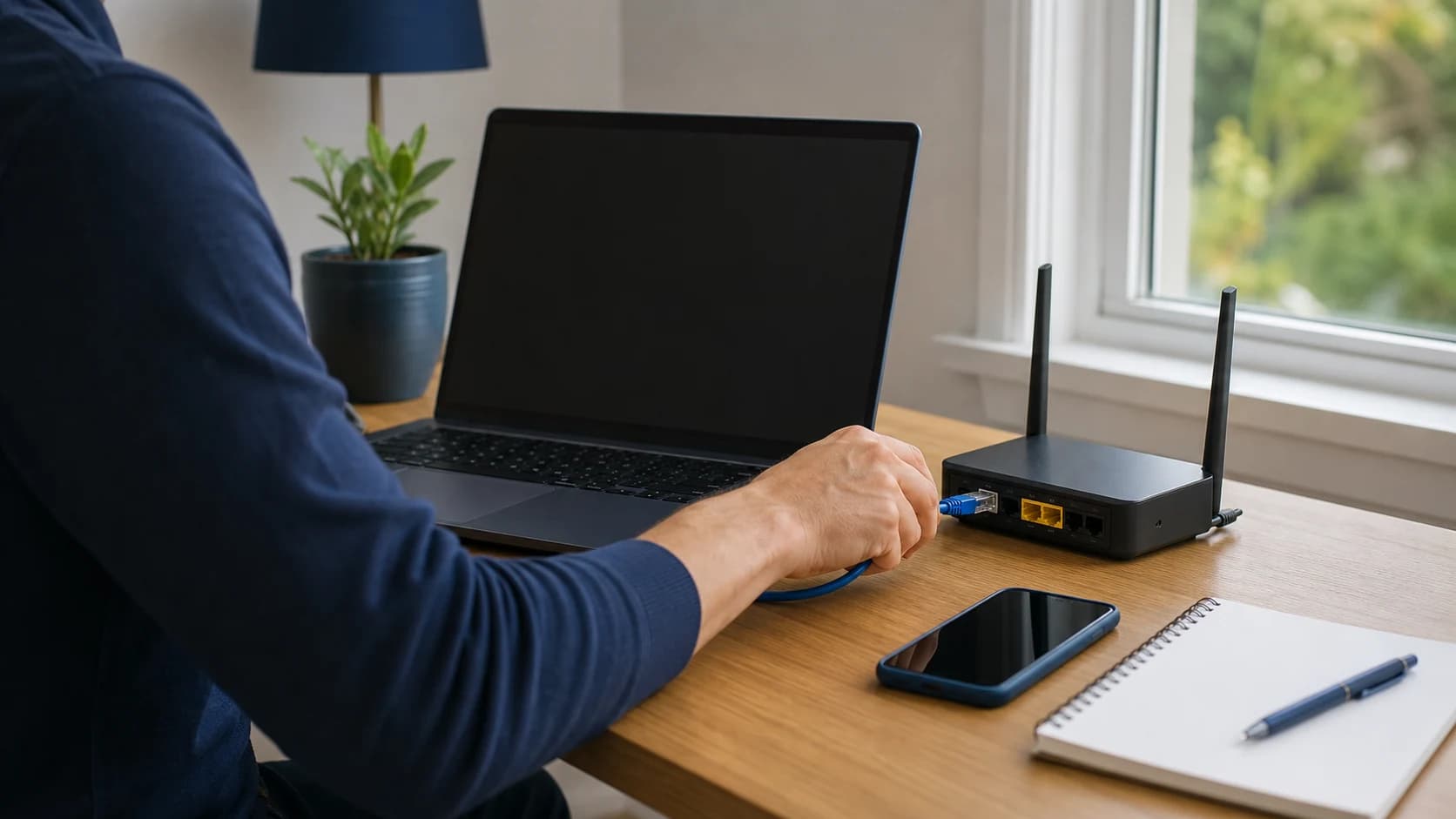
Disconnect the affected computer from Wi‑Fi or Ethernet. If money was sent or a payment is underway, contact the bank or payment provider immediately using an independently verified number or app. Use a different trusted device for account recovery, and keep the messages and timestamps you already have. A rushed reset can destroy evidence without securing your accounts.
Guide updated
Check the symptoms before changing the setup.
If access may still be active, disconnect the affected computer before using a separate trusted device for account and financial steps.
If the session just happened
If a financial transaction is happening now, contact the bank, card issuer, or payment provider immediately through a number or app you independently verify. Tech Genie cannot stop or reverse a payment.
Step 1
Close the remote-support session if you can do so safely, then disconnect only the affected computer from Wi‑Fi or Ethernet. Do not reconnect it to change passwords or check banking.
Step 2
If banking, cards, payment apps, gift cards, wire transfers, or cryptocurrency were involved, use a different trusted phone or computer to contact the provider through an official number or app.
Step 3
From that trusted device, start with primary email and any password manager, then financial and other important accounts. Change reused passwords, review recovery methods, and revoke unfamiliar sessions.
Step 4
Write down when it happened, how contact began, the remote app used, what was opened, and how payment happened. Save only useful evidence that does not expose more private information.
What was exposed?
Device cleanup is only one part of the response. Financial, identity, account, and business incidents need the appropriate provider, and those actions should not wait for a computer appointment.
Device cleanup path
Keep the computer offline, preserve the basic timeline, and plan a device review before normal use.
Account provider first
Use a trusted device to change the affected credentials, sign out other sessions, and check recovery email, phone, forwarding, and connected-app settings.
Financial provider first
Contact the bank, card issuer, transfer service, or payment provider immediately through a verified channel. Ask about stopping or disputing the transaction.
Identity recovery path
Use IdentityTheft.gov to build a recovery plan and follow its current instructions for fraud alerts, credit freezes, reports, and affected accounts.
Business incident escalation
Stop ordinary cleanup. Notify the authorized owner and the organization’s IT, insurer, legal counsel, or incident-response provider so evidence and reporting duties are not accidentally destroyed.
Preserve useful clues
You do not need to investigate the computer yourself. A short timeline and existing records are usually more useful than hours of clicking through the affected machine.
When asking for help
Use a clean, trusted device
Use unique passwords, sign out unfamiliar sessions, and enable MFA where the provider supports it. Keep every password, MFA code, recovery key, and identity document under the owner's control.
Priority 1
Change the password, revoke unfamiliar sessions and connected apps, and inspect recovery methods, forwarding rules, filters, delegates, and sent/deleted mail.
Priority 2
Use official apps, the number on the back of the card, or a number independently found on the provider’s site. Review transactions and follow the provider’s fraud instructions.
Priority 3
Protect the vault account, revoke unknown sessions, rotate exposed or reused passwords, and keep the new recovery information under the owner’s control.
Priority 4
Prioritize accounts that store payment methods, private documents, identity data, or can reset other accounts. Review sign-ins and recovery settings before normal use.
Device response
An ordinary cleanup cannot determine what a remote person viewed or copied or guarantee that a device is completely clean. Tech Genie can inspect common persistence points and document visible findings.
Record what is known, whether the device is personal or business-owned, what accounts were open, and whether files, payments, or identity information may be involved.
Review remote-access software, startup entries and services, browser extensions and notifications, local user accounts, security settings, and other obvious changes within an approved scope.
Run supported security scans and updates after evidence and escalation needs are understood. Record findings, including when nothing obvious is found.
A focused cleanup may fit a lower-risk incident. A planned reset or clean reinstall can provide higher ordinary assurance, but it is destructive and still cannot reveal everything the remote person viewed or copied.
Know when normal repair stops
Escalate when substantial money is involved, identity theft is suspected, the device belongs to a business, legal evidence may matter, or regulated/client data may have been exposed. Tech Genie can help with device triage and documentation, but does not perform financial recovery, legal advice, law-enforcement investigation, or forensic certification.
Owner-controlled support
Review visible device changes, run approved scans, document findings, explain cleanup versus reinstall options, and leave an action list. You type your own credentials and approve every meaningful or destructive change.
Arrange a device review
On-site or phone-guided triage is usually safer after suspicious remote access. If remote help is considered later, the customer approves it explicitly and remains in control.
How Tech Genie helps
We can investigate the symptoms, explain the findings, and carry out the work you approve. Unresolved issues and provider referrals are included in the service notes.
FAQ
End the remote session and disconnect the affected computer from Wi‑Fi or Ethernet. If money or an important account may be involved, use a separate trusted phone or device to contact the bank or provider and secure accounts. Do not use the affected computer for those steps.
No. A scan and inspection can find many known problems, but they cannot prove what a person viewed or copied or guarantee that every form of persistence is gone. Higher assurance may require a carefully planned reset or clean reinstall after backups and evidence needs are considered.
Not automatically. A reset can remove useful evidence and create data-loss or recovery problems. Disconnect first, protect money and accounts from a trusted device, preserve the basic timeline, then choose a cleanup or reinstall path with informed approval.
Keep troubleshooting
Stop the clicking, preserve useful clues, and distinguish browser spam or scam pages from a broader Windows compromise.
Read guide 8 min
Agree on the task with the person using the device, keep sign-ins private, and leave instructions they can use without you.
Read guide 3 min
Find out whether startup apps, low storage, memory pressure, or a failing drive explains the slowdown before spending on upgrades.
Read guide 3 min
Tech Genie is not a licensed contractor. Construction-related work is limited to casual, minor, or inconsequential projects totaling less than $1,000 for labor, materials, and all other items, requiring no building permit, and performed without employees or paid helpers.